|
Convert WMA/WMV/ASF to MP3
|
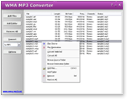
WMA MP3 Converter converts WMA/WMV/ASF to MP3.
The software is an ALL-IN-ONE audio converter that supports more
than 100 audio and video files, and keeps ID3 tag when converting.
WMA MP3 Converter supports batch conversion,
and is full compatible with Windows 10/8/7/Vista/XP/2000.
- Choose Files
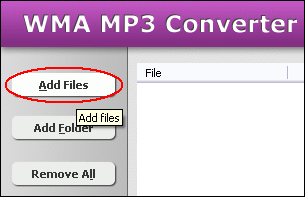
Click "Add Files" button to choose files and add them to conversion
list.
The software supports 3G2, 3GP, 3GP2, 3GPP, 4XM, AAC, AC3, ADTS, ADX, AFC, AIF,
AIFC, AIFF, ALAW, AMR, AMV, APE, ASF, AU, AVI, AWB, CAF, CDA, CDATA, CIF, DIF,
DIVX, DNXHD, DRC, DTS, DV, DVD, DVR-MS, DXA, EAC3, FLAC, FLC, FLI, FLIC, FLV,
FLX, GSM, GXF, H261, H263, H263+, H264, IT, KAR, M1A, M1V, M2A, M2T, M2TS, M2V,
M4A, M4B, M4R, M4V, MID, MIDI, MJ2, MJPEG, MJPG, MKA, MKV, MLP, MLV, MMF, MO3,
MOD, MOV, MP+, MP1, MP2, MP3, MP4, MPA, MPC, MPE, MPEG, MPG, MPGA, MPP, MPV, MTM,
MTS, MTV, MVI, MXF, NSA, NSV, NUT, NUV, OGA, OGG, OGM, OGV, OGX, OMA, PSP, PSX,
PVA, QCIF, QCP, QT, RA, RAM, RCV, RGB, RM, RMI, RMVB, ROQ, RPL, S3M, SDP, SHN,
SMK, SND, SOL, SOX, SPX, STR, SWF, THD, TS, TTA, UMX, VC1, VFW, VID, VMD, VOB,
VOC, VQF, W64, WAV, WAVE64, WM, WMA, WMD, WMV, WV, XA, XM, XVID, XWMV, Y4M, and
YUV.
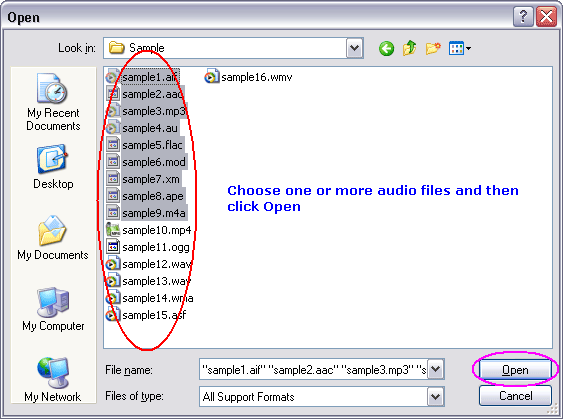
Choose one or more files you want to convert and then click Open.
- Choose Target File Format
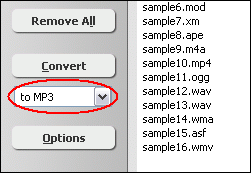
You can choose one of the following formats
- to AAC
- to AAC for iPod/iPhone/iPad/iTunes/DSi
- to AC3
- to AIFF
- to ALAC (Apple Lossless)
- to AMR
- to AU
- to CAF
- to DTS
- to FLAC
- to M4A (MPEG-4 audio)
- to M4B (MPEG-4 audiobook)
- to M4R (iPhone ringtone)
- to MKA
- to MMF
- to MP2
- to MP3
- to MP4 (audio track)
- to MPA
- to OGG
- to VOC
- to WAV
- to WMA
- Convert
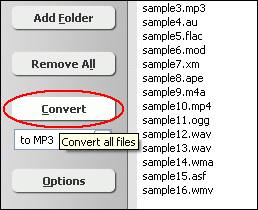
Click button "Convert" to convert all files into target format.
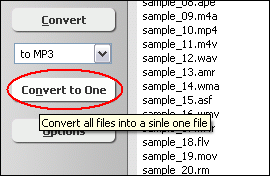
Alternatively, you could click "Convert to One" to convert
and combine/join/merge multiple files to one file.
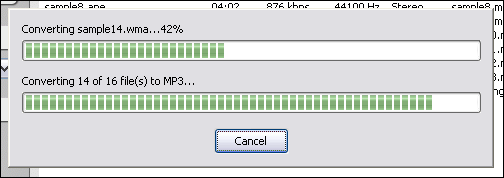
The software is converting files.
- Play & Browse
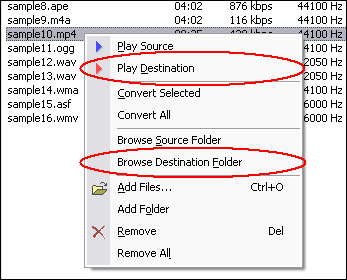
Right-click converted item and choose "Play Destination" to play
the destination file, choose "Browse Destination Folder" to open
Windows Explorer to browse the destination file.
Top
What is WMA?
Windows Media Audio (WMA) is an audio data compression technology
developed by Microsoft. The name can be used to refer to its audio file format
or its audio codecs. It is a proprietary technology that forms part of the Windows
Media framework. WMA consists of four distinct codecs. The original WMA codec,
known simply as WMA, was conceived as a competitor to the popular MP3 and RealAudio
codecs. WMA Pro, a newer and more advanced codec, supports multichannel and high
resolution audio. A lossless codec, WMA Lossless, compresses audio data without
loss of audio fidelity. And WMA Voice, targeted at voice content, applies compression
using a range of low bit rates.
A WMA file is in most circumstances encapsulated, or contained, in the Advanced
Systems Format (ASF) container format, featuring a single audio track in one of
following codecs: WMA, WMA Pro, WMA Lossless, or WMA Voice. These codecs are technically
distinct and mutually incompatible. The ASF container format specifies how metadata
about the file is to be encoded, similar to the ID3 tags used by MP3 files. Metadata
may include song name, track number, artist name, and also audio normalization
values.
What is MP3?
MPEG-1 Audio Layer 3, more commonly referred to as MP3, is a digital audio encoding
format using a form of lossy data compression. It is a common audio format for
consumer audio storage, as well as a de facto standard encoding for the transfer
and playback of music on digital audio players. MP3's use of a lossy compression
algorithm is designed to greatly reduce the amount of data required to represent
the audio recording and still sound like a faithful reproduction of the original
uncompressed audio for most listeners, but is not considered high fidelity audio
by audiophiles. An MP3 file that is created using the mid-range bit rate setting
of 128 kbit/s will result in a file that is typically about 1/10th the size of
the CD file created from the original audio source. An MP3 file can also be constructed
at higher or lower bit rates, with higher or lower resulting quality. The compression
works by reducing accuracy of certain parts of sound that are deemed beyond the
auditory resolution ability of most people. This method is commonly referred to
as perceptual coding. It internally provides a representation of sound within
a short term time/frequency analysis window, by using psychoacoustic models to
discard or reduce precision of components less audible to human hearing, and recording
the remaining information in an efficient manner. This is relatively similar to
the principles used by JPEG, an image compression format.
Related Topics:
|